
Bringing My Kobo Highlights into Obsidian
I like reading on my Kobo. Highlighting a passage and adding an annotation while reading feels natural enough. The annoying part starts when I want to get those annotations onto my computer and do something with them.
I use Obsidian for my notes, so that is where I wanted the passages to end up. Somewhere I could add my own thoughts, link to another note, and find them again without picking up the reader.
That became my weekend project: bring my Kobo highlights into Obsidian.
The initial idea was simple: export the highlights as Markdown.
Of course, once I started thinking about how I would actually use it, there were a few more requirements. What happens when I add another highlight? What if I change an annotation on the Kobo? What if I write something in Obsidian and the next export replaces it?
So this became a small application running on my NAS, a program on the Kobo, and an Obsidian plugin. A reasonable amount of software for moving some text between two devices (!)
In this post, I will go through how the pieces fit together and the decisions that mattered more than I expected.
Getting annotations off the reader
Even exporting a plain text file has some friction. A documented way to enable the device-side export, reported working on the Kobo Libra 2, is to connect it over USB and edit .kobo/Kobo/Kobo eReader.conf:
[FeatureSettings]ExportHighlights=trueThis exposes a per-book export option that saves the annotations as a .txt file on the reader. Then I still need to copy the file onto my computer and get its contents into my notes. The setting and export behavior can vary by model and firmware; it isn’t a requirement for every Kobo export method.
Kobo also has an official export through its website, including text and Markdown. That route is limited to books purchased from Kobo or obtained through Kobo Plus, and availability also depends on author approval.
So exporting is possible. What I wanted was a repeatable path into my vault, where new highlights could arrive without making me reorganize the same book every time.
What I wanted
I’ve written before about why I like keeping my notes as Markdown files. They are easy to move, search and edit. If I stop using a particular application, the files are still there.
I wanted the same thing for book highlights.
The workflow should let me:
- Highlight a passage or write an annotation on the Kobo.
- Send those changes to an application I host myself.
- Browse the books and review passages from the browser.
- Download them into my Obsidian vault.
- Add personal notes without worrying about the next sync.
I also wanted to keep reading separate from maintaining the system. Highlighting a passage shouldn’t require deciding which note it belongs to or how I will use it later. I can do that when I come back to it.
The overall structure
There are three main parts:
The Kobo sends the source data. The app keeps an imported library and provides a browser interface. The Obsidian plugin downloads the book data and creates the Markdown files locally.
The detailed architecture. The server export and the local Obsidian library are independent.
One detail here is that the plugin downloads data from the app’s API. It doesn’t copy a folder from the NAS.
The app can also generate a Markdown library on the server, but that export is independent. I don’t have to mount a network share or keep the vault on the NAS to use the plugin. My working vault stays on the Mac and remains available offline.
If I want a separate folder backup to the NAS, that can be its own sync task.
Getting the data out of the Kobo
The Kobo keeps its reading data in a SQLite database. The uploader creates a consistent snapshot and sends it to the service over HTTPS. The source database is read-only throughout the process.
I added a sync action to NickelMenu so I can start the upload from the reader itself.
The uploader is written in Go, and it can also include covers and chapter metadata from the EPUB files. Chapter names are useful when browsing a book later. I don’t want to look at an internal filename and guess which chapter it represents.
There is also an optional sync with passage context. More on that later.
Starting a Kobo sync updates the app. Obsidian downloads those changes separately, manually or on its optional timer.
This integration reads from the Kobo. Reviews, tags and notes created in the app or Obsidian don’t get written back to the reader.
A small app on the NAS
The server is a Go service with a SQLite database and a React/Vite interface. It runs on my NAS and is accessible over HTTPS.
The app gives me another place to work with the highlights. I can search across books and passages, read Kobo annotations, add notes, mark passages as reviewed, and organize them with tags and collections.
I wanted this to work from the browser too. Opening Obsidian shouldn’t be a requirement just to revisit a passage.
Imports use the Kobo’s book and highlight IDs to update existing records. Sending the same book again should update its data rather than create another copy of it.
That sounds like a small implementation detail, but almost every other part depends on it. A title can change. An annotation can change. The application still needs to know that it is looking at the same highlight.
The files in Obsidian
The companion plugin gives me a library view inside Obsidian, with covers, search and filters for reading and review status.
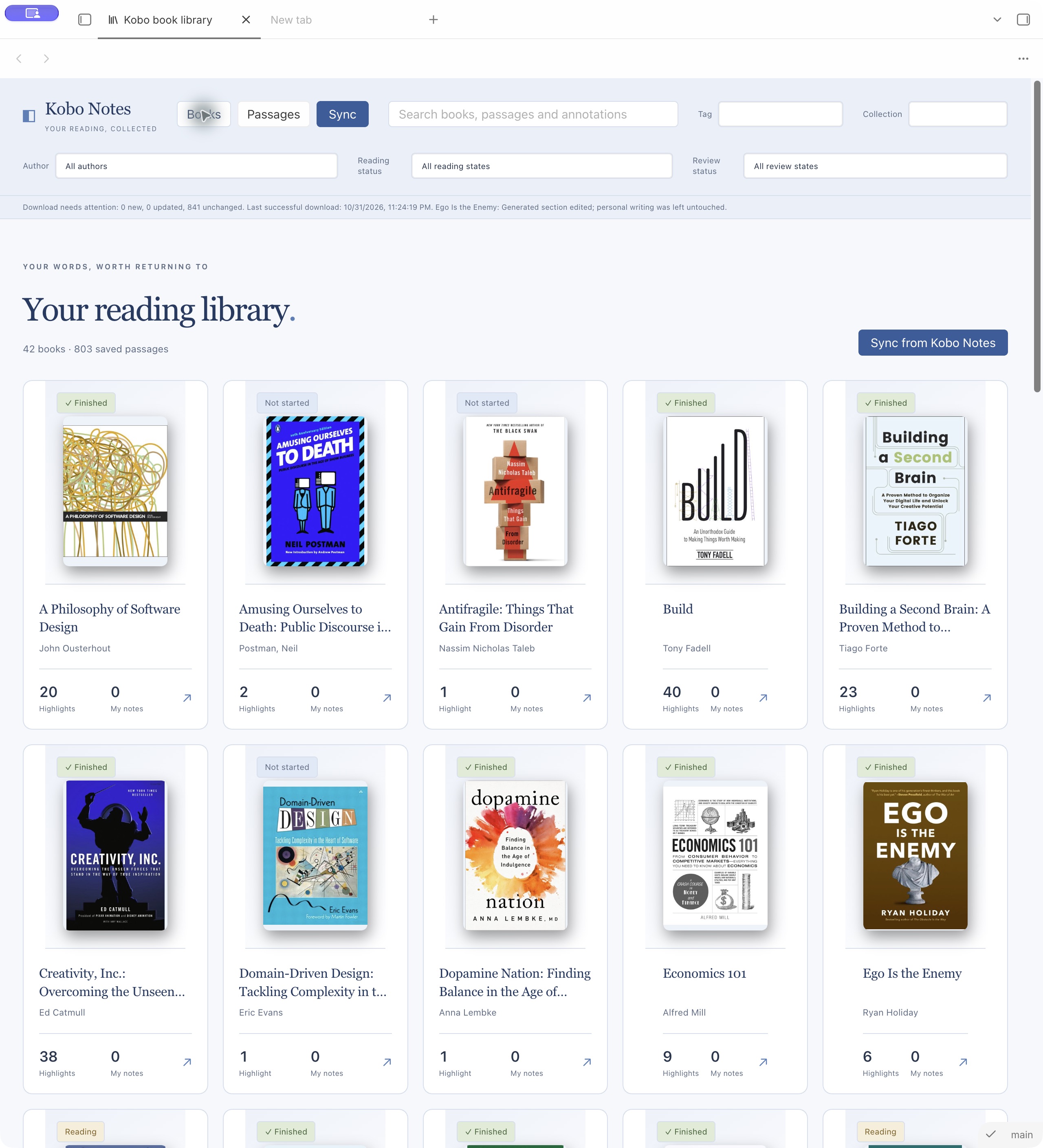
The current plugin in my vault, showing 42 books and 803 saved passages. The sync report also shows an edited-source conflict; the affected note was left untouched.
Inside the vault, the library lives under 09-Books:
09-Books/ Book Title/ Overview.md cover.jpg Highlights/ 01-001 - Short highlight title.md 01-002 - Another highlight.mdThe book folder uses the book’s name. The IDs stay in the metadata where the integration needs them. I don’t need to see an identifier every time I open the sidebar.
Each book has an overview and each highlight gets its own note. This makes it easy to link a particular passage from another note instead of linking to a long document and hoping I find the right part later.
I initially included more information in the highlight notes: chapter progress, separate annotation headings and comments used by the exporter. Looking at the result, it felt too busy.
What I want to read is the passage and my note, if I wrote one.
So the visible content is simpler. Identity and overwrite protection live in frontmatter. The plugin can use the metadata without making the body look like an export report.
The files also work without the plugin. The dashboard and explorer are convenient ways to browse them, but the library is still ordinary Markdown.
The part I cared about most: keeping my own writing
Creating a Markdown file is easy. Updating it after someone has edited it is where things get interesting.
The integration needs to distinguish imported content from personal writing. The quotation and imported annotations belong to the source. My own notes belong to me.
When a new download arrives, it updates the source content while preserving my writing. If I edit generated content in a way that conflicts with the incoming version, the update reports a conflict and leaves that note untouched.
I would rather resolve a visible conflict than find out later that a sentence I wrote disappeared.
The same approach applies when a source highlight goes missing. Its local note is retained and flagged instead of being silently deleted. A highlight may have become the starting point for a longer thought by then. Its value isn’t limited to whether it still exists on the reader.
Review state needs a direction
Reviewing passages in both places introduced another question.
Suppose I mark a passage as reviewed in the app. That state should appear in Obsidian when I download it. But then I decide to mark it as not reviewed in Obsidian because I want to come back to it.
The next download shouldn’t mark it reviewed again.
The plugin handles this with a local override. It follows the app’s review state until I make an explicit local choice. After that, it preserves my choice, including marking something as not reviewed.
The app provides the default. A local choice takes priority on every later download, until I explicitly reset it.
If I want to follow the app again, I can clear the override with Use app review state.
Tags and collections follow a similar approach. Local changes survive downloads, and I can choose to use the app’s values again later.
This isn’t two-way synchronization. Obsidian doesn’t upload these changes to the app. For this version, having a clear direction and protecting local decisions is enough.
A little more context
Sometimes a highlighted sentence needs the paragraph around it to make sense.
The optional context-enabled sync extracts surrounding text from the EPUB and sends a small snippet with the passage. It doesn’t upload the whole book.
The app and plugin can display that context when it is available. Including it in the Markdown note is a separate option and starts disabled. I still want the default note to be small.
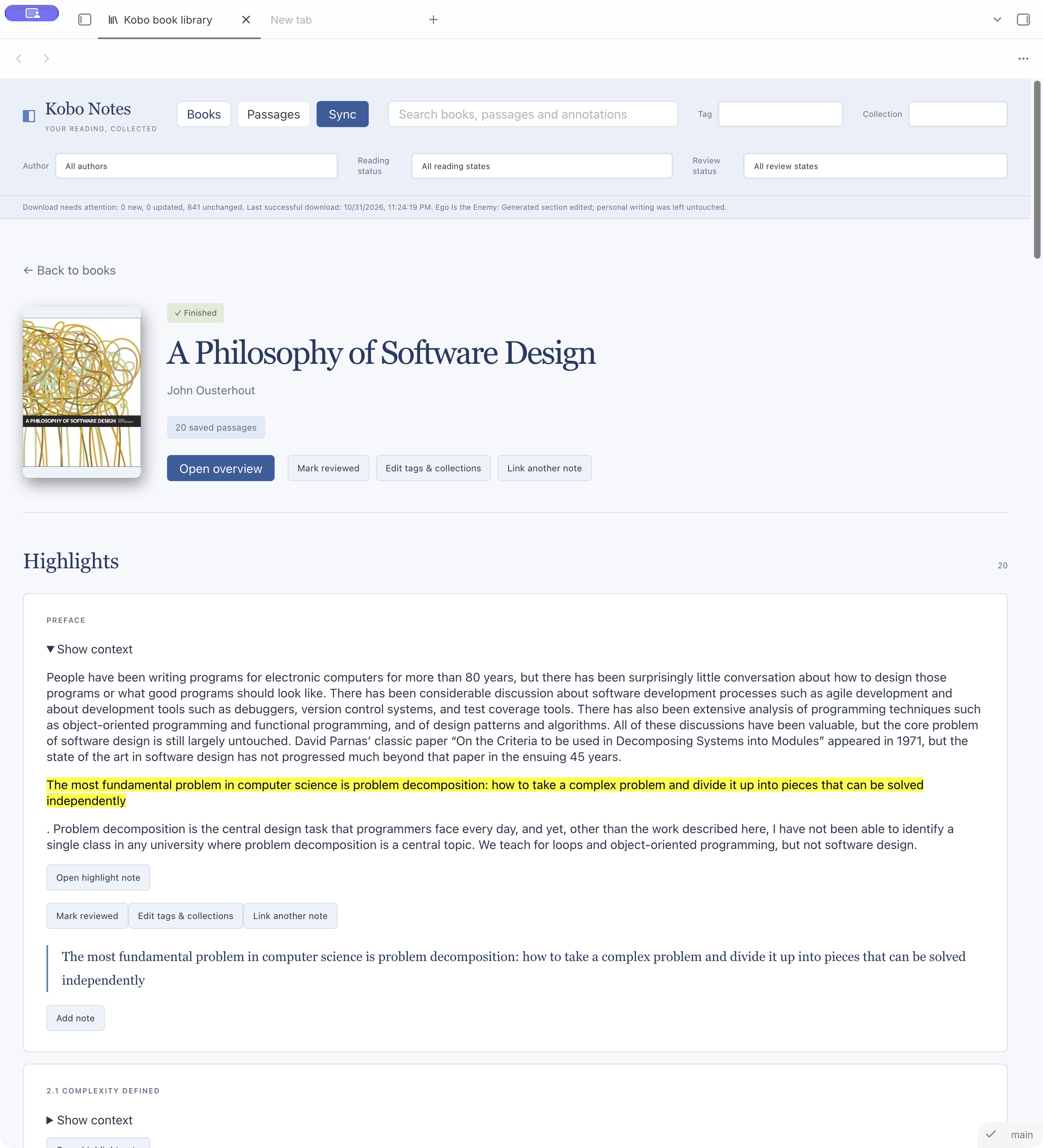
The book view for A Philosophy of Software Design by John Ousterhout, inside Obsidian. With Show context expanded, I can read the surrounding text and see the highlighted passage in place. The underlying highlight note is still one click away.
The example above shows context available in my actual library. It is useful for checking what a passage meant without turning every highlight note into a long excerpt. Other books and EPUB layouts still need their own checks; this one example doesn’t tell me how every book on the device behaves.
What I want to see next
The useful part of this project will be what happens after the export.
Can I find a passage when I remember the idea but forget the book? Can I connect something I read to a note I was already working on? Does reviewing a highlight lead to writing anything in my own words?
Those are harder questions than whether the sync completed successfully.
For now, the pieces are in place: capture on the Kobo, browse in the app, and keep the notes in my vault. I can improve the interface later. What I wanted first was a way to bring the material into the place where I already think and write, without losing my own work the next time I press sync.
Cover photo by Lala Azizli on Unsplash.
Tags: note-taking , software , homelab
Share